All current platform builds
Download the Apple-notarized universal macOS app, portable Windows x64 ZIP, tested Linux x64 archive, or signed Android APK. Build 11 has no beta expiry deadline.
REST API client · JavaScript plugins · Local workspaces
Send and debug API requests, organize collections and environments, then extend the client with inspectable JavaScript plugins.
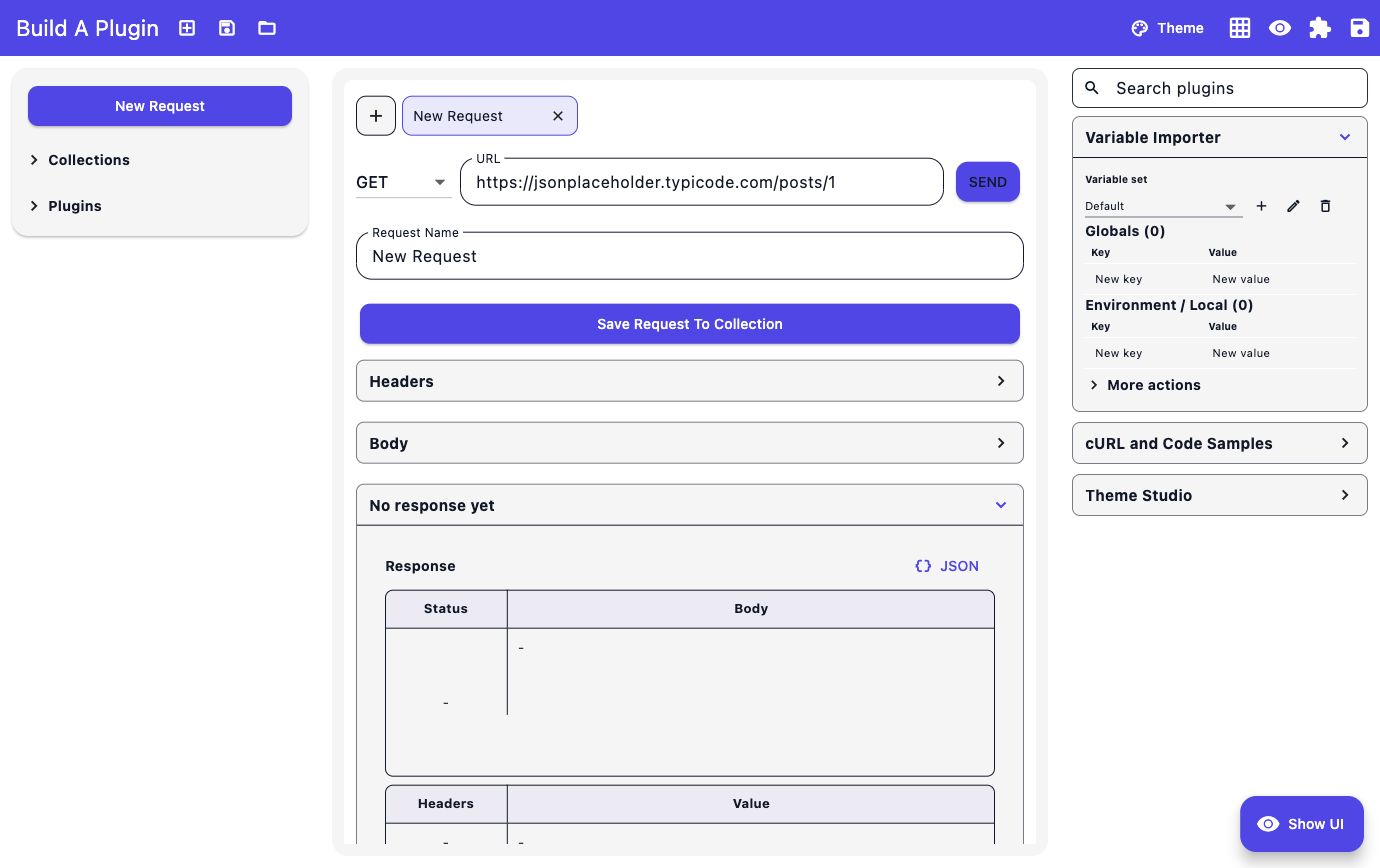
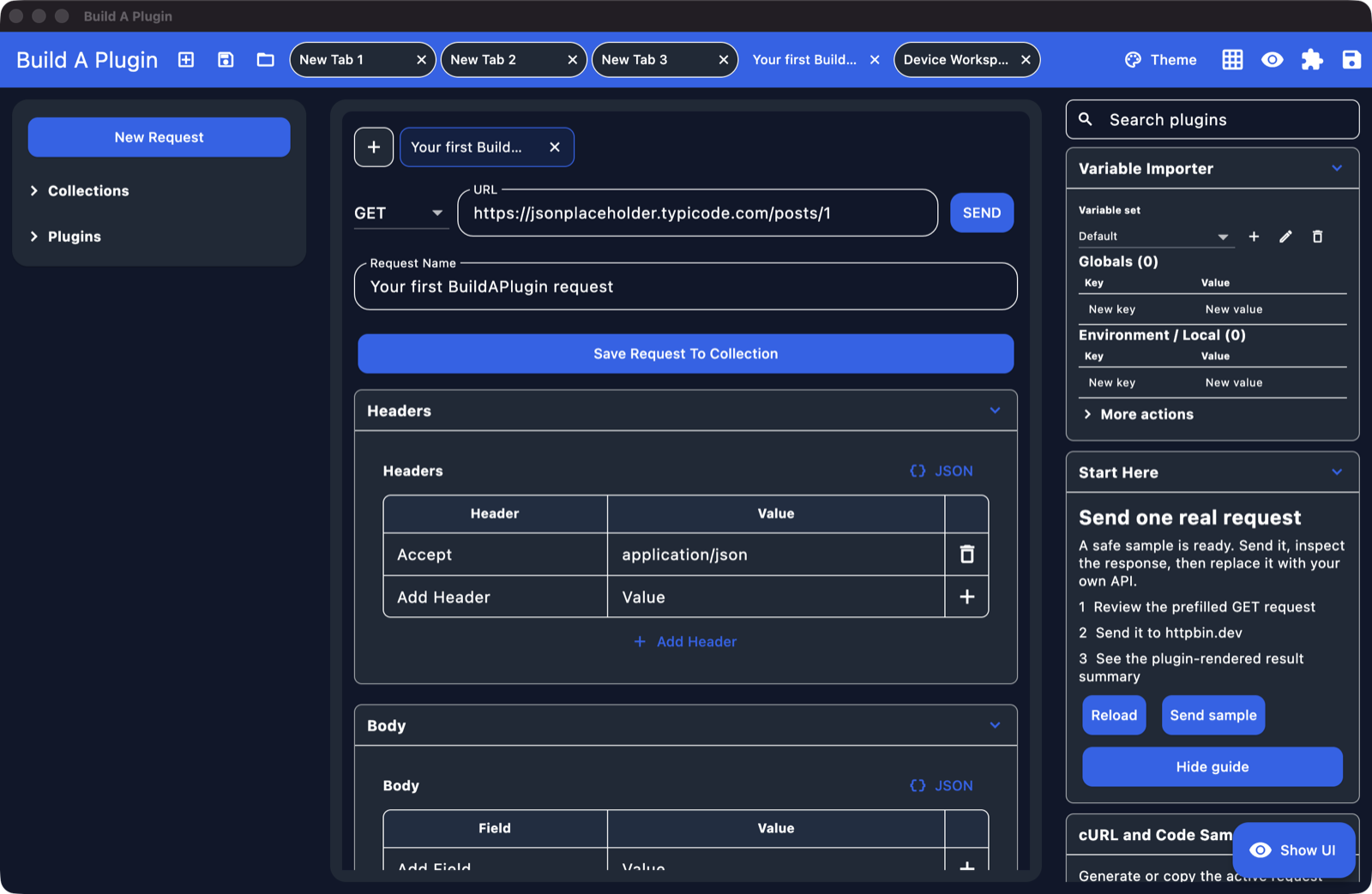
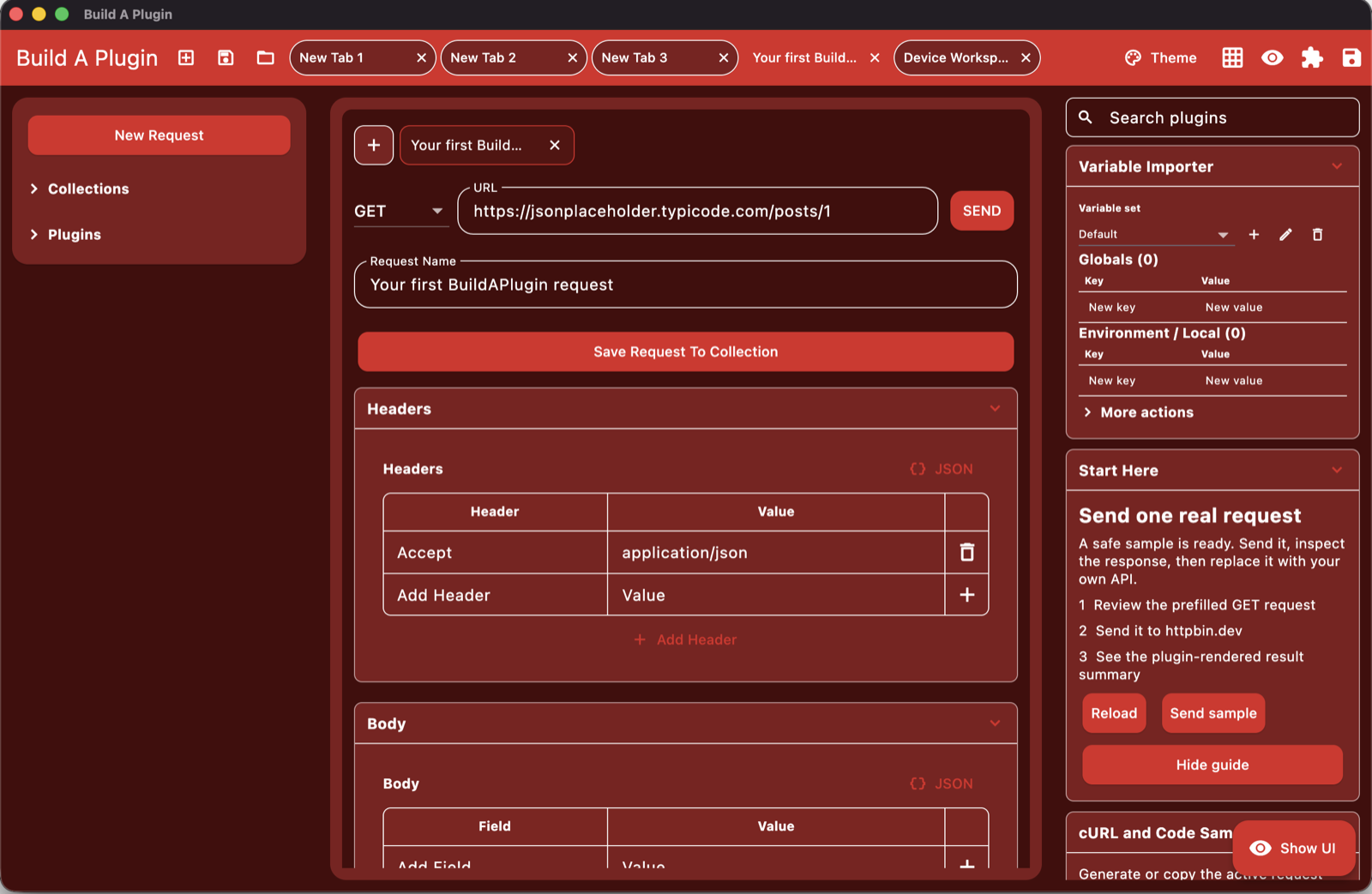
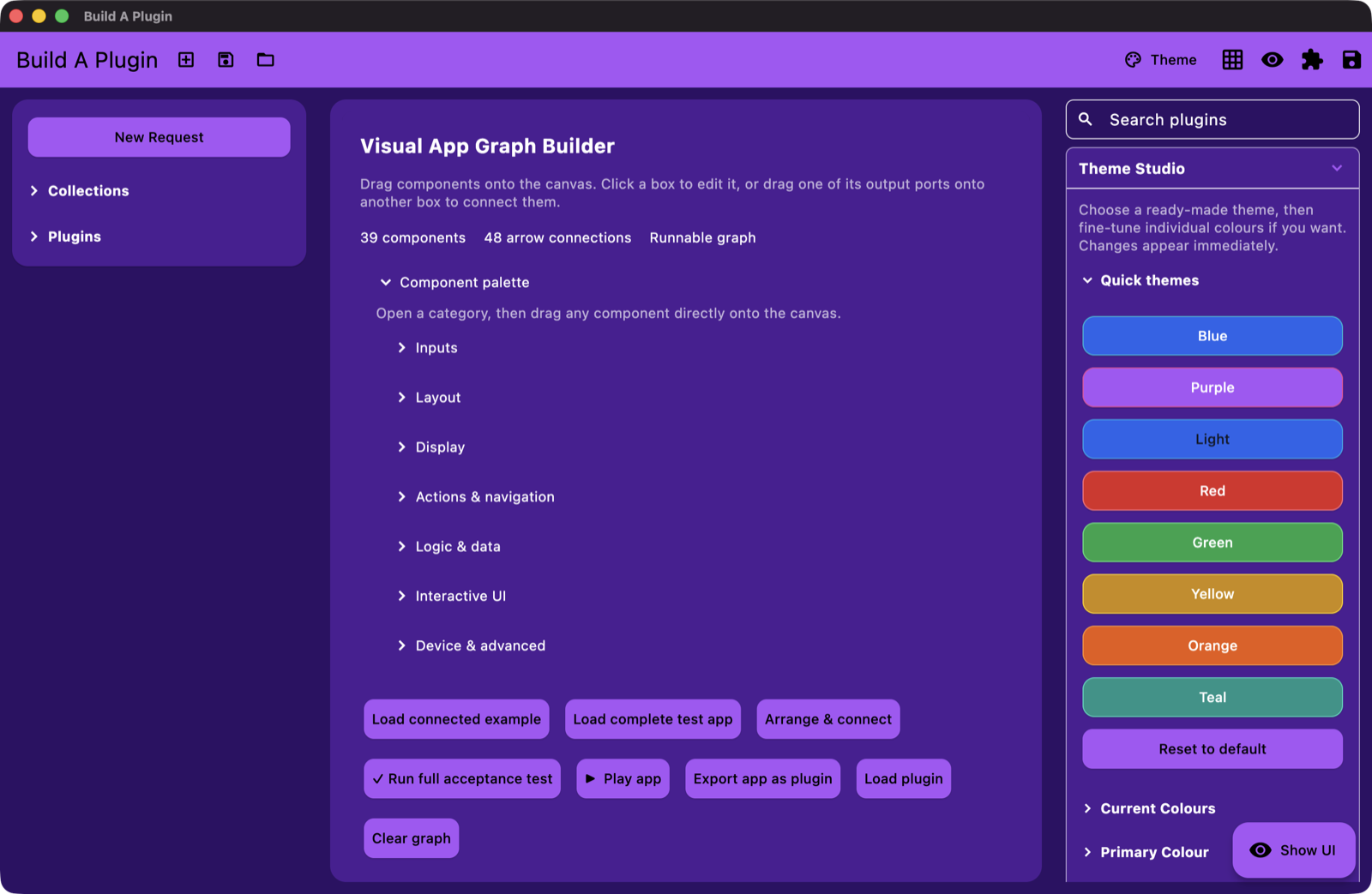
See it in 24 seconds
Watch a real request move from response inspection into JavaScript plugins, visual app building, and device workflows.
Download
Choose the package for your platform on the download page. No account, email address, or checkout is required; protected links expire after five minutes.
Download the Apple-notarized universal macOS app, portable Windows x64 ZIP, tested Linux x64 archive, or signed Android APK. Build 11 has no beta expiry deadline.
The desktop builds share the same adaptable API and plugin workspace. Android is a signed tablet-focused build for direct installation.
Everything expected from a REST client
The request composer, collections, environments, imports, exports, code samples, recorder, and response viewer are enabled from the first launch.
Local REST requests and Postman-style imports, with JavaScript plugins when a generic client is not enough.
Work in a local desktop workspace without creating an account or putting every request in the cloud.
Add focused controls, request hooks, response handling, and saved workflow settings with inspectable JavaScript.
Organize saved requests, import existing Postman-style collections, and switch reusable variable sets.
Work with headers, bodies, cURL/code samples, status, response headers, and formatted response content.
Start with the job you already know
Use BuildAPlugin like a familiar REST client on day one. Create requests, edit headers and bodies, inspect responses, and save collections. Add plugins only when repeated work deserves its own controls or automation.
Build requests with methods, URLs, headers, bodies, variables, saved names, and a clear response viewer.
Import Postman-style collections with folders and keep organized workflows portable through export.
Add a plugin that stores settings, creates focused controls, updates requests, and handles the steps you repeat.
The reason to choose BuildAPlugin
JavaScript plugins can add focused UI, prepare requests, inspect responses, connect steps, and persist local state. Start with the complete REST workspace and add specialist behavior only when you need it.
Optional advanced capabilities
The recorder, Theme Studio, and Visual App Graph Builder remain available in collapsed sections. Native and device integrations can be added through plugins when a workflow requires them.
Capture interactions, save recordings, and turn repeatable request sequences into inspectable plugin commands.
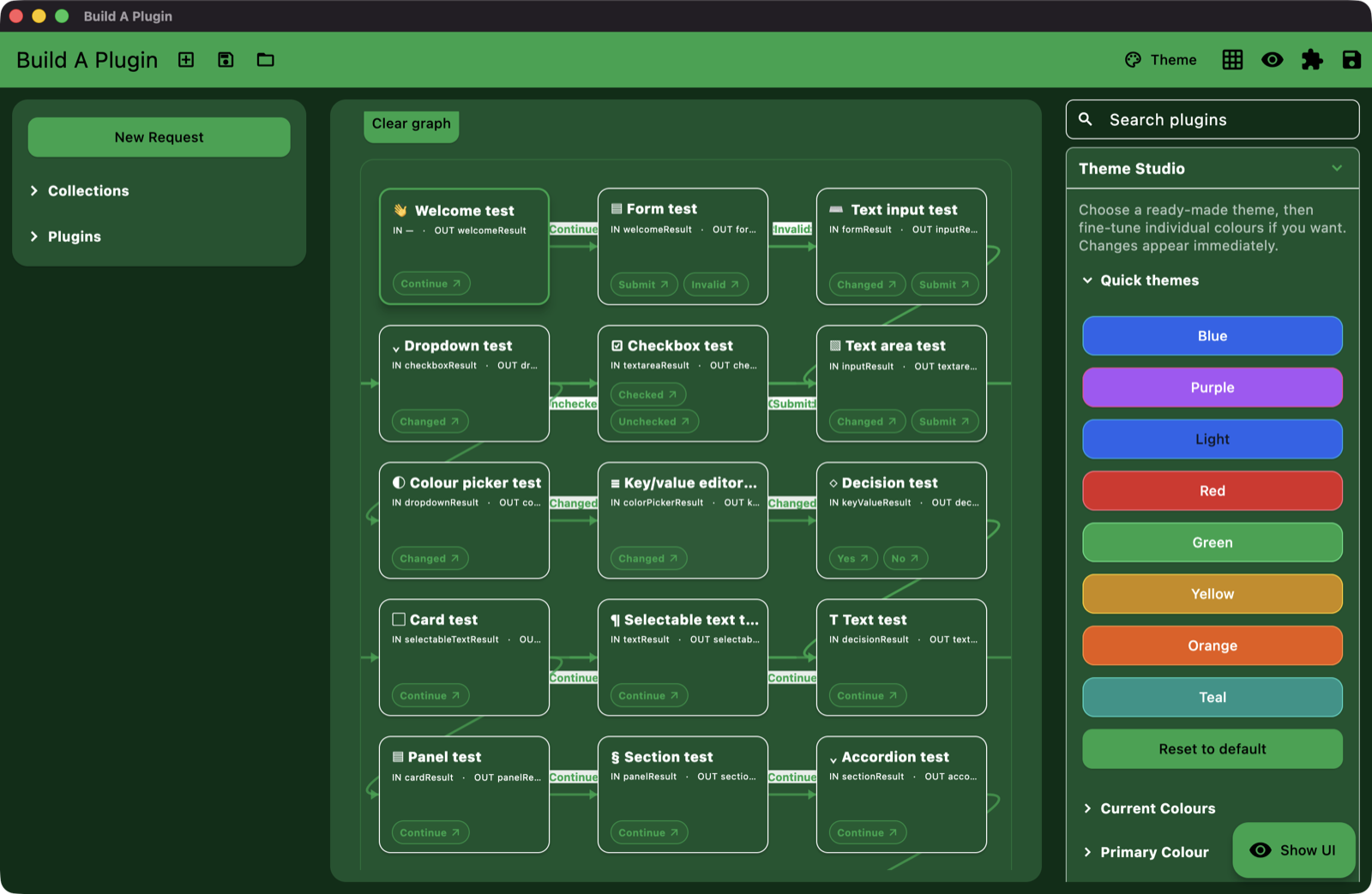
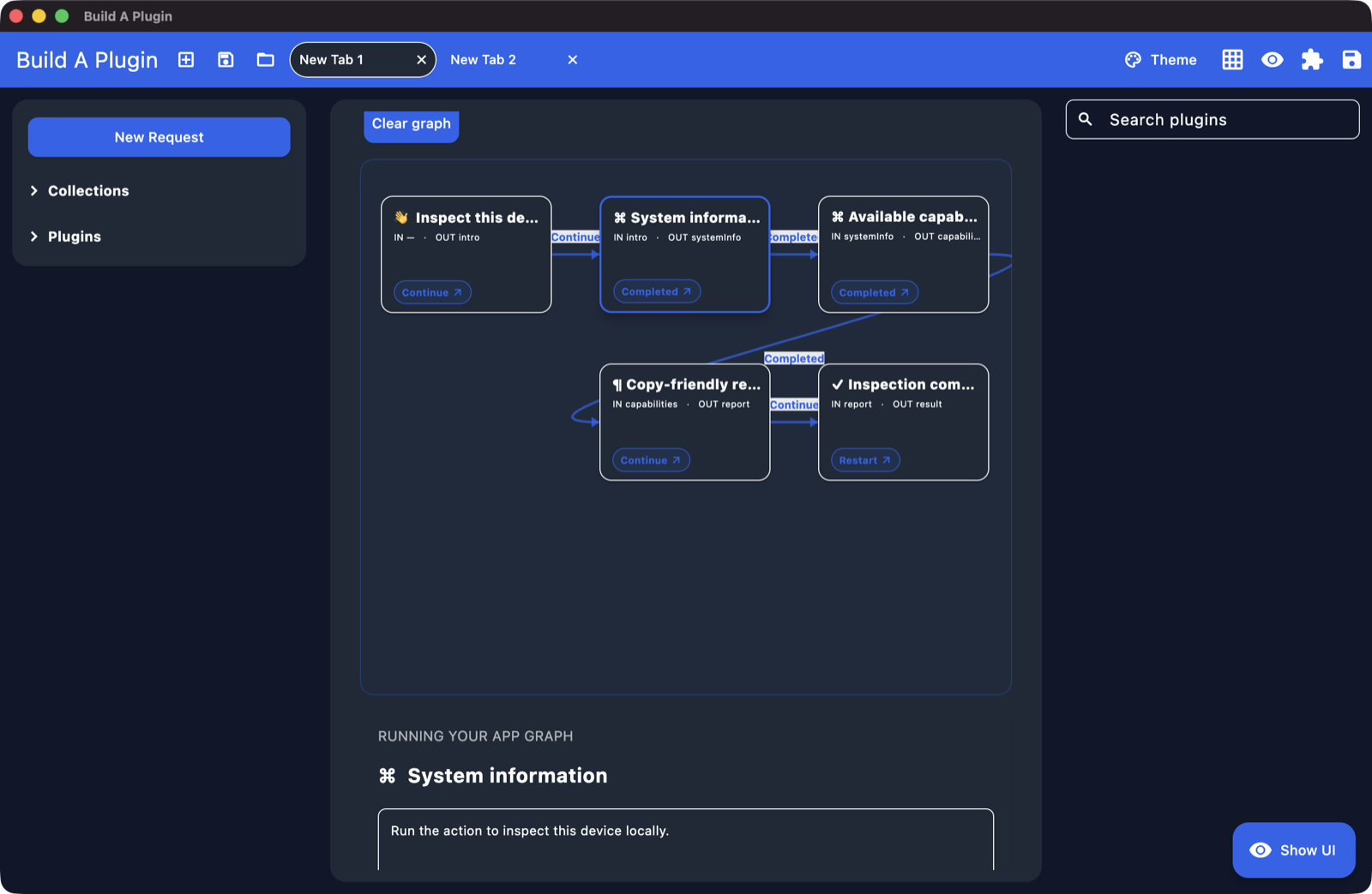
Use the collapsed visual graph builder to connect forms, API actions, decisions, and local state.
Keep Theme Studio collapsed until needed, then change the active REST workspace without rebuilding the app.
Plugins can opt into files, clipboard, secure storage, network diagnostics, Bluetooth, camera, microphone, and visible OS hand-offs.
Review the JavaScript, declared permissions, UI transformations, request hooks, and response handlers before installation.
Developer documentation
BuildAPlugin plugins are CommonJS JavaScript files that can add UI, run commands, mutate the live workspace, inspect app values, chain requests, and pass data between plugins through the plugin bus. Use this as the quick-start reference for building reliable plugins by hand or with the AI builder.
Every plugin exports a `manifest`, optional `transformApp`, command handlers, and optional request/response hooks. Use stable IDs for every UI node so Inspect, Recorder, and other plugins can target your components.
module.exports = {
  manifest: {
    id: "hello-plugin",
    name: "Hello Plugin",
    version: "1.0.0",
    priority: 100,
    permissions: ["ui.transform", "plugin.storage"]
  },

  transformApp: function(app, api) {
    api.ui.remove(app, "helloPluginCard");
    api.ui.append(app, "rightPanel", {
      type: "card",
      id: "helloPluginCard",
      children: [
        { type: "text", id: "helloPluginTitle", value: "Hello Plugin" },
        { type: "button", id: "helloPluginRun", text: "Run", command: "helloPlugin.run" }
      ]
    });
    return app;
  },

  commands: {
    "helloPlugin.run": function(ctx) {
      return { __action: "showMessage", title: "Hello", message: "Plugin ran." };
    }
  }
};Use `api.ui.append`, `api.ui.prepend`, `api.ui.insertBefore`, `api.ui.insertAfter`, and `api.ui.remove` to place plugin UI in the workspace. Common targets include `rightPanel`, `mainPanel`, `pluginList`, `requestTopBar`, `headersEditor`, `bodyEditor`, `responseViewer`, `urlInput`, and `sendButton`.
Commands return action objects. Use `multi` when you need several operations in order.
return {
  __action: "multi",
  actions: [
    { __action: "ui.setValue", targetId: "urlInput", value: "https://api.example.com/users" },
    { __action: "setFields", fields: { "activeRequest.method": "GET" } },
    { __action: "triggerTarget", targetId: "core.request.sendButton" }
  ]
};Long-press a visible element in the app and choose Inspect. Copy the exact selector or command body from the inspect panel into your plugin or into the AI builder. Recorder uses the same target model, so recorded workflows can be replayed as plugin commands.
var url = ctx.dollar("#urlInput").val();
ctx.dollar("#requestNameInput").val("Copied from URL");
ctx.dollar("#bodyEditor").val("url=" + url);
return ctx.dollar("#bodyEditor");Supported selectors are `#id`, `.className`, type names, role names, exact `id` or `targetId`, and exact label text. Prefer Inspect-provided IDs such as `#urlInput`, `#bodyEditor`, `#response.body.line.2`, `#kvTable.Headers.add.key`, and `#core.headers.addButton`.
Use hooks to prepare requests, validate data, store results, or chain follow-up requests. Hooks can return a request, a response, or an action.
module.exports = {
  manifest: { id: "response-tools", name: "Response Tools", version: "1.0.0" },

  hooks: {
    beforeRequest: function(ctx) {
      ctx.request.headers["X-From-Plugin"] = "yes";
      return ctx.request;
    },

    afterResponse: function(ctx) {
      return {
        __action: "multi",
        actions: [
          { __action: "setPluginData", key: "responseTools.lastBody", value: ctx.responseBody },
          { __action: "pluginBus.output", name: "response.lastBody", value: ctx.responseBody }
        ]
      };
    }
  }
};
To send and then show the response, call `core.request.send` with an explicit `afterSendCommand`, then read `ctx.responseBody`, `ctx.response`, or `ctx.payload.response` in that command.
The plugin bus is the shared lane for plugin-to-plugin data. Use it when another plugin, request interpolation, or the inspector should be able to see an output.
commands: {
  "authTools.publishToken": function(ctx) {
    return {
      __action: "multi",
      actions: [
        { __action: "pluginBus.output", name: "auth.token", value: "abc123" },
        { __action: "pluginBus.publish", channel: "auth.token.changed", data: { source: "authTools" } }
      ]
    };
  },

  "authTools.useToken": function(ctx) {
    var token = ctx.bus.input("auth.token", "");
    return { __action: "setFields", fields: { "activeRequest.headers": { "Authorization": "Bearer " + token } } };
  }
}Private bus names start with `_` or contain `.private.`, `:private:`, or `/private/`. Use clear public names like `auth.token`, `customer.selected`, `response.cleaned`, or `pluginId.outputName`.
The request tabs became dramatically faster by moving the hot path out of plugin storage and full app rebuilds. Normal tab clicks now update request/tab state in RAM, repaint a tiny native tab strip, and avoid JavaScript execution, disk saves, and app-definition rebuilds.
Plugin authors should use this principle too: use full `transformApp` rebuilds for structure, and lightweight runtime mutations for frequent interactions like tab switching, accordions, typing, selection, filters, hover state, and temporary workflow state.
// Good for frequent UI changes:
return { __action: "ui.setValue", targetId: "requestNameInput", value: "Fast update" };

// Good for durable settings:
return { __action: "setPluginData", key: "myPlugin.settings", value: { enabled: true } };

// Avoid this for every click or keystroke:
return { __action: "refresh" };
Rule of thumb: persist what must survive restart; keep temporary UI state in runtime memory; use `ui.*` mutations and `ctx.dollar` for immediate effects; rebuild only when the plugin’s structure actually changes.
BuildAPlugin starts as a practical REST workspace. Plugin and theme capabilities remain available when the standard request workflow needs to go further.
The free download requires no account or checkout. Pro access, licensing, and business rollout remain available through the store when paid plans launch.